Using the command line interface (CLI)
Many of the steps you follow in the GUI, such as training and prediction, are also available with a single octron command in your terminal. The command line interface (CLI) is ideal for batch jobs, headless servers, remote machines (SSH) and reproducible scripts. Some functions, like the render function (for creating overlay videos and tracklet videos - see below), are only available through the command line interface for now.
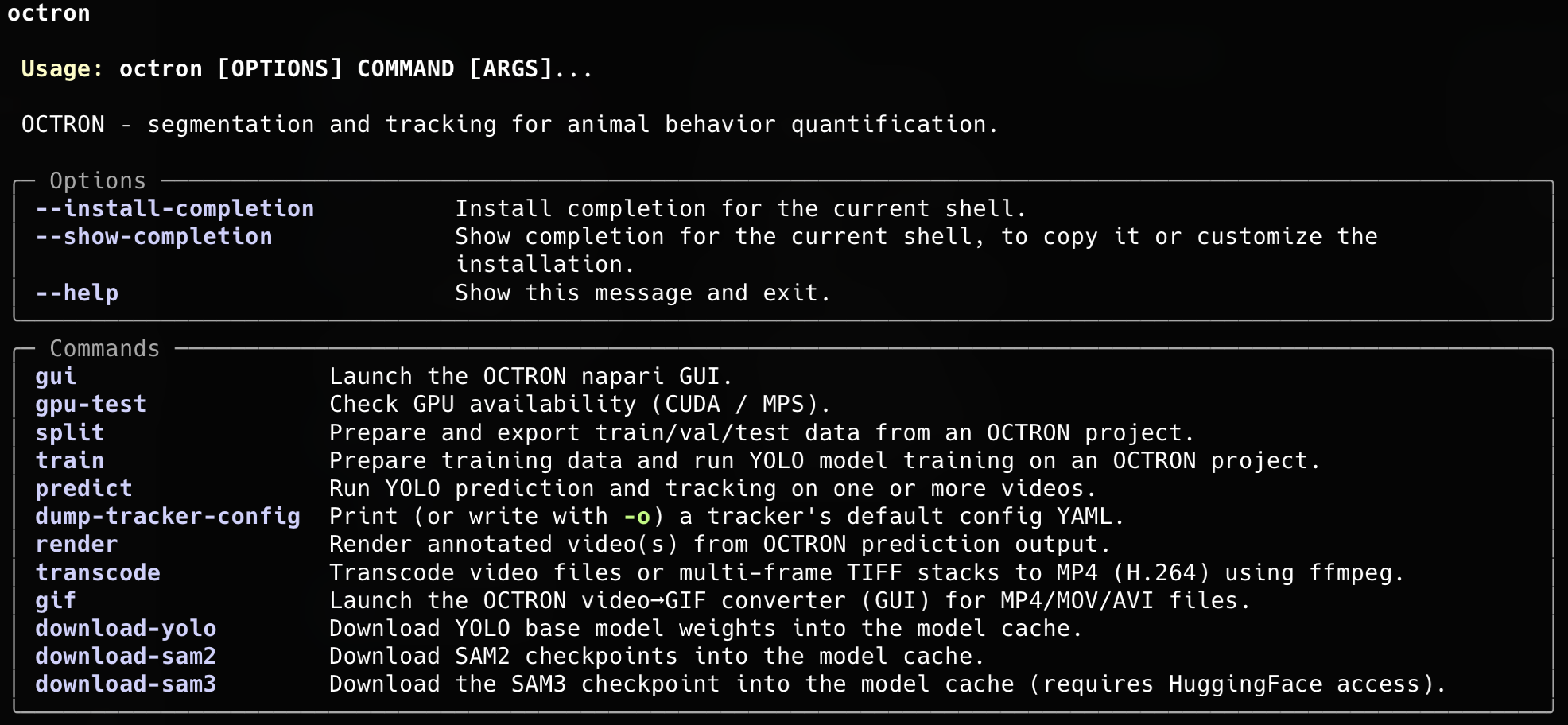
After installation and activation of your octron environment, you can run octron with no arguments (or with --help) to see the help menu that lists all available commands:
Per-command help
Every subcommand documents its own options. Append --help to any command to see the full, always up-to-date list, for example:
Command overview
The table below lists every command and links to the relevant part of the documentation.
| Command | What it does | Related docs |
|---|---|---|
octron gui |
Launch the napari GUI. | Using the GUI |
octron transcode |
Convert videos (or TIFF stacks) to OCTRON-compatible MP4 (H.264). | Create project |
octron split |
Export train/val/test data from an annotated project. | Training › Generate training data |
octron train |
Prepare data (optional) and train a YOLO model. | Training › Train |
octron predict |
Run detection/segmentation and tracking on one or more videos. | Analyze (new) videos, File system › Analysis |
octron render |
Render annotated overlays or per-animal tracklet crops from predictions. | Analyze (new) videos › Results, Access output data |
octron dump-tracker-config |
Print/write a tracker's default config YAML to customize it. | BoxMOT trackers |
octron gpu-test |
Check CUDA / MPS (GPU) availability. | Installation |
octron config |
View or edit config.yaml settings (cache paths, device, split defaults). |
Configuration |
octron download-models |
Download/refresh YOLO base weights into the model cache. | Installation |
octron download-sam2 |
Download/refresh SAM2 checkpoints into the model cache. | Installation |
octron download-sam3 |
Download/refresh the SAM3 checkpoint (needs HuggingFace access). | Installation |
octron gif |
Convert MP4/MOV/AVI videos to GIF (opens a small GUI helper). | octron gif |
Core workflow
These commands mirror the GUI workflow: transcode → (❌ annotate) → (split) → train → predict → render.
Note: Annotation (annotate) is a pure GUI step - you need to use OCTRON in napari for that. Training set splitting (split) is optional; it is also run when you use the train subcommand. Use it only if you want to change the splitting options manually.
octron transcode
Convert videos of any format - or multi-frame TIFF stacks - into the MP4 (H.264) format OCTRON expects. This is the command-line equivalent of the transcoding step described in Create project.
Usage: octron transcode [OPTIONS] VIDEOS...
Example: octron transcode -o /path/to/videos/mp4_transcoded /path/to/videos
| Option | Default | Description |
|---|---|---|
VIDEOS... |
(required) | One or more video/TIFF file paths, or a directory containing video files. |
--output, -o |
mp4_transcoded/ next to input |
Output directory where transcoded videos will be saved. |
--crf |
23 |
Constant Rate Factor (0–51); lower = better quality. |
--fps |
source | Output frame rate (TIFF stacks default to 20). |
--no-audio |
off | Drop the audio track instead of re-encoding to AAC. |
--overwrite |
off | Overwrite existing output files. |
octron split
Prepare and export the train/val/test split from an annotated OCTRON project, without training. It prints a split summary table and a colored timeline showing where train/val/test fall across each video, so it is handy for inspecting the split before you run octron train --no-split. See Training › Generate training data.
Usage: octron split [OPTIONS] PROJECT_PATH
Example: octron split --train 0.7 --val 0.15 --dry-run /path/to/project
| Option | Default | Description |
|---|---|---|
PROJECT_PATH |
(required) | Path to the OCTRON project directory. |
--mode |
segment |
segment (instance segmentation) or detect (bounding boxes). |
--train |
from config.yaml (default 0.7) |
Fraction of frames used for training. |
--val |
from config.yaml (default 0.15) |
Fraction of frames for validation (the remainder becomes the test split). |
--seed |
from config.yaml (default 88) |
Random seed for a reproducible split. |
--buffer |
from config.yaml (default 1) |
Frames dropped at each train/val/test block boundary to add a temporal gap between splits (0 disables). |
--prune / --no-prune |
off | Drop frames where not every label is annotated (matches the GUI's Prune checkbox). |
--watershed / --no-watershed |
off | Split touching same-label masks into separate instances before geometry generation (matches the GUI). |
--dry-run |
off | Print the split sizes without writing any files. |
Split defaults live in config.yaml
--train, --val, --seed and --buffer default to split_train_fraction, split_val_fraction, split_seed and split_buffer in your config.yaml; passing a flag overrides the config for that run. The GUI uses the same config values (without per-run overrides), so the CLI and GUI produce the same split by default.
octron train
Prepare training data (by default) and train a YOLO model. This is the command-line equivalent of Training › Train.
Usage: octron train [OPTIONS] PROJECT_PATH
Example: octron train --model yolo26m --mode segment --epochs 250 --device auto /path/to/project
| Option | Default | Description |
|---|---|---|
PROJECT_PATH |
(required) | Path to the OCTRON project directory. |
--model |
yolo26m |
Base model to train — a YOLO model (segmentation or detection) or an RT-DETR model (rtdetr-l, rtdetr-x; detection-only, use with --mode detect). |
--mode |
segment |
segment (instance segmentation) or detect (bounding boxes). |
--device |
from config.yaml (default auto) |
auto, cpu, cuda, or mps (auto picks CUDA → MPS → CPU). |
--epochs |
250 |
Number of training epochs. |
--imagesz |
640 |
Input image size. |
--save-period |
50 |
Save a checkpoint every N epochs. |
--overwrite |
off | Overwrite an existing trained model (default: skip if best.pt exists). |
--resume |
off | Resume from an existing last.pt checkpoint. |
--no-split |
off | Skip data preparation (use when octron split has already run). |
--train / --val / --seed / --buffer |
from config.yaml (default 0.7 / 0.15 / 88 / 1) |
Split fractions, seed and boundary buffer (ignored with --no-split). |
--prune / --no-prune |
off | Drop frames where not every label is annotated (ignored with --no-split). |
--watershed / --no-watershed |
off | Split touching same-label masks into separate instances (ignored with --no-split). |
RT-DETR is detection-only
RT-DETR models (rtdetr-l, rtdetr-x) support only --mode detect. Running e.g. octron train --model rtdetr-l --mode segment stops with a clear message; use --mode detect, or pick a segmentation-capable YOLO model.
octron predict
Run a trained model on new videos to produce detections/masks and tracks. This is the command-line equivalent of Analyze (new) videos; the output layout is documented under File system › Analysis.
Usage: octron predict [OPTIONS] VIDEOS...
Example: octron predict --model /path/to/best.pt --tracker bytetrack --device auto path/to/clip1.mp4 path/to/clip2.mp4
| Option | Default | Description |
|---|---|---|
VIDEOS... |
(required) | Path to one or more video files, or a directory of .mp4 files. |
--model |
(required) | Path to a trained YOLO .pt file (or a directory containing best.pt). |
--tracker |
bytetrack |
Tracker algorithm — see BoxMOT trackers. |
--tracker-config |
– | Custom tracker YAML, overrides --tracker (create one with octron dump-tracker-config). |
--device |
from config.yaml (default auto) |
auto, cpu, cuda, or mps. |
--conf-thresh |
0.5 |
Detection confidence threshold. |
--iou-thresh |
0.7 |
IoU threshold for non-maximum suppression. |
--skip-frames |
0 |
Skip frames between predictions (0 = analyze every frame). |
--one-object-per-label |
off | Track only the top-confidence detection per label. |
--opening-radius |
0 |
Morphological opening radius applied to masks (0 = off). |
--detailed |
– | Region properties to extract — a comma-separated list or all (see Analysis › Explanation of .csv data). |
--overwrite |
off | Replace existing predictions (default: skip already-analysed videos). |
--buffer-size |
from config.yaml (default 500) |
Frames buffered before writing to zarr. |
--output-dir, -o |
alongside each video | Directory where octron_predictions/ is written. |
--local-cache-dir |
from config.yaml |
Stage output on a fast local disk, then move each finished video to --output-dir. |
octron render
Turn prediction output into shareable videos: an annotated overlay (masks/boxes/labels) or one stabilised cropped video per tracked animal (tracklets).
Usage: octron render [OPTIONS] PREDICTIONS_PATH
Examples:
# Annotated overlay
octron render --preset draft /path/to/octron_predictions/video1_bytetrack

# One cropped, stabilised video per animal
octron render --tracklets --skip-empty /path/to/octron_predictions/video1_bytetrack

# Force CPU encoding if the GPU encoder (h264_nvenc) fails
octron render --no-nvenc /path/to/octron_predictions/video1_bytetrack
| Option | Default | Description |
|---|---|---|
PREDICTIONS_PATH |
(required) | Path to the directory containing the prediction output (octron_predictions/<video>_<tracker>/). |
--video |
auto | Original video; auto-detected if alongside octron_predictions/. |
--output, -o |
<predictions>/rendered/ |
Output directory for the rendered video. |
--preset |
draft |
Resolution of the rendered video: preview (0.25×), draft (0.5×), or final (full resolution). |
--encoder |
auto |
Video encoder: auto (prefer GPU h264_nvenc, else libx264), nvenc (force GPU), or libx264 (force CPU). |
--no-nvenc |
off | Force the CPU encoder (libx264); shorthand for --encoder libx264. Use if h264_nvenc fails (e.g. an old NVIDIA driver). |
--start / --end |
full video | First / last frame to render. |
--alpha |
0.4 |
Mask overlay opacity (0–1). |
--masks / --no-masks |
mode-dependent | Draw segmentation masks. |
--boxes / --no-boxes |
mode-dependent | Draw bounding boxes. |
--labels / --no-labels |
on | Draw label text (overlay only). |
--tracking-frames |
0 |
Overlay each track's recent trajectory as a thin fading trail spanning this many past frames (opacity fades to ~10% at the oldest end); inf shows the full history without fading. 0 = off. Overlay mode only (ignored with --tracklets). |
--min-confidence |
0.5 |
Skip detections below this confidence value. |
--min-observations |
0 |
Skip tracks with fewer than N observations. |
--track-ids |
all | Comma-separated track IDs to render (e.g. 1,3,5). |
--skip-empty |
off | Drop frames with no detection (handy when --skip-frames is used for octron predict). |
--trim |
off | Trim each video to the track's first/last observation. |
--bbox-sizes |
off | Report per-track bounding-box sizes (to pick --tracklet-size), then exit. |
--debug |
off | Verbose logging with per-stage timing. |
When adding the option --tracklets, these additional options apply:
| Option | Default | Description |
|---|---|---|
--tracklets |
off | Render one stabilised crop video per tracked animal. |
--tracklet-size |
auto |
Side length in px of crop (auto = largest bbox + padding). |
--tracklet-smooth-sigma |
2.0 |
Gaussian centroid smoothing in frames (0 = off). |
--tracklet-interpolate |
0 |
Bridge gaps up to N consecutive missing frames. |
--tracklet-segment-only |
off | Black out all pixels outside each animal's mask. |
--tracklet-segment-keep |
0 |
Keep only the N largest mask components (0 = keep all). |
--tracklet-offset |
0,0 |
Shift the crop centre by X,Y pixels (source-video pixels). |
Trackers
octron dump-tracker-config
Print a tracker's default configuration as YAML (or write it to a file with -o). Edit the file and pass it to octron predict --tracker-config <file> to fine-tune tracking — the command-line equivalent of the Tune dialog described under BoxMOT trackers.
Usage: octron dump-tracker-config [OPTIONS] [TRACKER]:[bytetrack|ocsort|botsort|d-ocsort|hybridsort|boosttrack]
Example: octron dump-tracker-config -o my_tracker.yaml bytetrack
| Option | Default | Description |
|---|---|---|
TRACKER |
bytetrack |
Tracker whose default config to dump. |
--output, -o |
stdout | Write to this file instead of printing (stdout = only print to command line). |
Setup & utilities
octron gui
Launch the OCTRON napari GUI. See Using the GUI. No options available.
Example: octron gui
octron gpu-test
Check and report whether a CUDA or MPS (Apple Silicon) GPU is available — useful to confirm that your install can use hardware acceleration (see Installation). No options available.
Example: octron gpu-test
octron config
View and edit the OCTRON settings stored in config.yaml (model/prediction cache directories, compute device, and the train/val/test split defaults). The GUI reads the same file, so a change here applies to both. See Configuration for the full settings reference.
Usage: octron config [init|list|get|set|path|edit] ...
| Sub-command | Description |
|---|---|
init |
Write a commented config.yaml template of every setting (--force overwrites; also written on first GUI launch). |
list |
Show every setting with its current value, default and source. |
get KEY |
Print a single value to stdout (only the value, safe in scripts). |
set KEY VALUE |
Validate and save a value to config.yaml (created if needed). |
path |
Print the config.yaml location and whether it exists yet. |
edit |
Open config.yaml in your $EDITOR. |
Examples:
octron config init
octron config list
octron config set model_cache_dir /nas/octron_models
octron config set split_train_fraction 0.8
SEED=$(octron config get split_seed)
octron download-models / download-sam2 / download-sam3
You can manually initiate the download of model weights and checkpoints into the per-user model cache directory. SAM3 requires HuggingFace access (see How to access SAM3 under Model selection).
octron download-yolo is kept as a hidden alias for octron download-models for backward compatibility.
Examples:
| Option | Default | Description |
|---|---|---|
--force |
off | Re-download even if the files already exist. |
octron gif
Open a small GUI helper that converts MP4/MOV/AVI videos to animated GIFs (handy for figures and slides). No options available.
Example: octron gif